EMC – Next-Generation VNX – The Speed to Lead

Otherwise titled, “about time”. I heard about this a few months ago, and have had a number of technical briefings from people inside EMC since then. For a number of reasons EMC weren’t able to publicly announce it until now. Anyway, for the official scoop, head on over to EMC’s Speed to Lead site. In this post I thought I’d cover off on some of the high-level speeds and feeds. I hope to have a some time in the near future to dive in a little deeper on some of the more interesting architectural changes.

As far as the hardware goes, EMC have refreshed the VNX midrange line with the following models:

VNX_New_Models

The 5200 is positioned just above the 5100, the 5400 above the 5300, and so forth. The VNX8000 is the biggest yet, and, while initially shipping with 1000 drives, will eventually ship with a 1500-spindle capability. The SPs all use Sandy Bridge chips, with EMC heavily leveraging multi-core. The 8000 will sport  dual-socket, 8-core SPs and 128GB of RAM. You’ll also find the sizing of these arrays is based on 2.5″ drives, and that a number of 2.5″ and 3.5″ drives will be available with these models (highlights being 4TB 3.5″ NL-SAS and 1.2TB 2.5″ SAS drives). Here’s a better picture with the max specs for each model.

VNX_models

Multi-core is a big part of the new VNX range, with MCx described as a project that redesigns the core Block OE stack to improve performance, reliability and longevity.

VNX_MCx_Optimisation

Instead of FLARE using one core per component, MCx is able to evenly distribute workloads across cores, giving improved utilisation across the SP.

VNX_MCx_Core_utilisation


The key benefit of this architecture is that you’ll get improved performance with the other tech in the array, namely FAST VP and Deduplication. The multi-core optimisations also extend to RAID management, Cache management and FAST Cache. I hope to be able to do some more detailed posts on these.

FAST-VP has also received some attention, with the chunk size being reduced from 1GB down to 256MB. The big news, however, is the introduction of fixed-block deduplication, with data being segmented in 8KB chunks, deduped at the pool level (not across pools), and turned on or off at the LUN level. I’ll be doing a post shortly on how it all works.

Hopefully that’s given you a starting point from which to investigate this announcement further. As always, if you’re after more information, talk to your local EMC people.

EMC – My dog ate my SPS but I still need to use write cache

Someone contacted me via my About page a little while ago to ask how to use write cache on their CX without having an SPS. It’s worth noting that doing this outside of a lab environment is a really bad idea, as the point of the SPS is that you’ll have sufficient time to flush cache to disk prior to losing power to the array. But anyway, in case you missed it, here’s what to do.

Use EMCRemote to access the console of the SP. If you’re using a CX4, you can get some instructions on how to do that here. Fire up a command prompt, then run flarecons d f a (to access SP A). Then run setcache -nosps (to override the SPS state). You should then be able to enable write cache.

EMC – CX POST output

Following on from my two previous posts on the CLARiiON POST and troubleshooting – here’s what a CX POST looks like when viewed from SP B.

CX_POST

Note that the chassis and disk WWN seeds match – this is useful if you’ve moved multiple arrays (during a data centre move, for example) and didn’t take note of the SP and DPE pairings (tsk, tsk). Note also that it’s looking at disks 1 and 3 – these are the boot disks for SP B (SP A uses disks 0 and 2).

CX_POST2

Note that you never get to a point where you can login via the serial console – it’s really only used for early diagnostics and monitoring.

CX_POST3

EMC – CX Troubleshooting – Part 2

In my previous post I talked about how error codes on a CX POST actually mean something, and can assist in your troubleshooting activities. But what does that stupid alphabet soup mean when you see a CLARiiON boot up?

CX_POST

Turns out all of those crazy letters mean something too, and you can refer to this PDF file I put together to work out at what point the array is failing its tests. Please note that I haven’t verified if these apply to the CX3, CX4 or VNX.

EMC – CX Troubleshooting – Part 1

Despite that fact that I’ve written over 270 posts in the past 5 years on this blog, one of my most popular posts has been my article on CLARiiON CX700 FLARE Recovery. I’ve been assisting someone via e-mail over the past month or so who was having problems getting a CX700 he’d acquired to boot. He’s a smart guy, but hasn’t used a CLARiiON before. And I was working from muscle memory and unable to eyeball the console for myself. So it was an interesting challenge, combined with varying time zones.

Anyway, I thought it would be interesting to do one or two posts on some basic CX stuff that may or may not assist people who are doing this for the first time. This isn’t going to be a comprehensive series but rather a few notes and examples as I think of them.

In this instance, my correspondent had a terminal connection to the array, and was seeing the following output:

AabcdefgBCDEabFabcdGHabIabcJabcKabcLabcMabcNabOabPabQabRabSabTabUabVabWabXY
EndTime: 07/29/2013 04:11:59
.... Storage System Failure - Contact your Service Representative ...
ErrorCode: 0x00000142
ErrorDesc:
Device: LCC 0 UART
FRU: STORAGE PROCESSOR
Description: LCC slot indicator Error!
Error detected when handling LCC READ command
EndError:
ErrorTime: 07/29/2013 04:11:38


Basically, the key thing was that error code ending in 142. According to this list of CX error codes I dug up, it indicates some sort of problem with the LCC. What wasn’t clear until much later, unfortunately, was which SP my correspondent was connected to. It turned out that SP A was faulty and needed to be replaced. There’s also a LCC 0 UART Sub-Menu available from the Diagnostics section of the Utility Partition. You can perform LCC diagnostics at this point to verify the POST errors you’re seeing. In short, pulling SP A allowed the system to boot, and error codes mean something to someone. Please note that I haven’t verified if these apply to the CX3, CX4 or VNX.

EMC – DIY Heatmaps – Updated Version

Mat has patched the DIY Heatmaps script, fixing a problem with current model VNXs and updated naviseccli whereby using the –get_drive_type –display_drive_type options of the heatmap script would cause a JavaScript error in the resulting heatmap HTML file. You can download it from the Utilities page.

EMC – CLARiiON / VNX Disk Addresses

Mat came across this about 9 months ago, and I’d forgotten to post it here. I don’t know when it happened, or whether it’s always been like this, but EMC have apparently used letters to reference disks in VNX and CLARiiON systems for a while now. It looks something like this:

0

1

2

3

4

5

6

7

8

9

10

11

12

13

14

0

1

2

3

4

5

6

7

8

9

A B C D E

What we can’t work out is what it looks like when you’ve got a 60-disk DAE in play. In any case, I verified that it works with naviseccli on our CX4 arrays.

C:\Users\penguinpunk>naviseccli -h arraysp1 getdisk 1_3_14
Bus 1 Enclosure 3 Disk 14
Vendor Id: HITACHI
Product Id: HUS15606 CLAR600
Product Revision: C3A8
Lun: Unbound
Type: N/A
State: Enabled
Hot Spare: NO
Prct Rebuilt: Unbound
Prct Bound: Unbound

[snip]

Current Speed: 4Gbps
Maximum Speed: 4Gbps

And here it is but using E instead of 14.


C:\Users\penguinpunk>naviseccli -h arraysp1 getdisk 1_3_E
Bus 1 Enclosure 3 Disk 14
Vendor Id: HITACHI
Product Id: HUS15606 CLAR600
Product Revision: C3A8
Lun: Unbound
Type: N/A
State: Enabled
Hot Spare: NO
Prct Rebuilt: Unbound
Prct Bound: Unbound

[snip]

Current Speed: 4Gbps
Maximum Speed: 4Gbps

EMC – Unisphere / Analyzer weirdness

Mat came across a weird problem with Unisphere the other day while he was trying to retrieve some nar files for EMC to look at. Normally I like to post solutions up here but in this case I don’t know what the solution is. Previously, it was my understanding that we could retrieve access multiple nar files from multiple arrays in the same domain via the one Unisphere session. This doesn’t seem to be the case anymore. As background, we run 4 CX4-960s and a CX4-240 in a single Unisphere domain. These arrays were all upgraded to 30.525 recently.

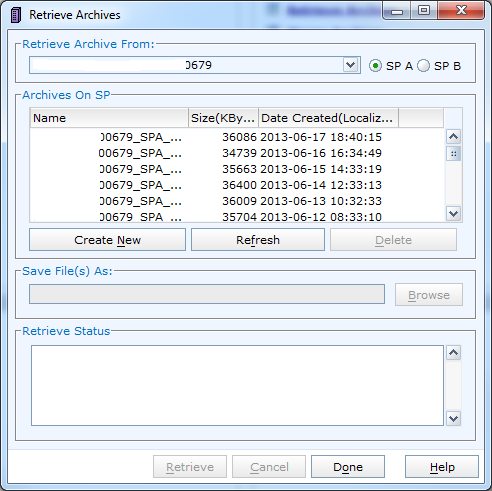
Normally, I’d login to one of the arrays and go to Monitoring -> Analyzer and then Retrieve Archive. So far, so good.

analyzer1

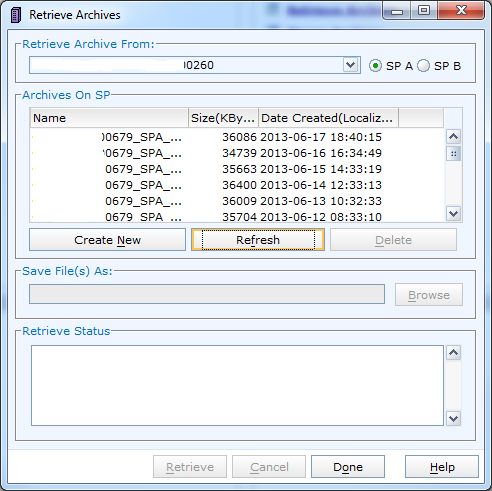
But when I change the “Retrieve Archive From:” selection, I get the following.

analyzer2

Notice that I’m trying to retrieve files from the array serial number 0260, but I’m still seeing 0679, even after hitting Refresh. Maybe it’s Unisphere on that array, let’s try another.

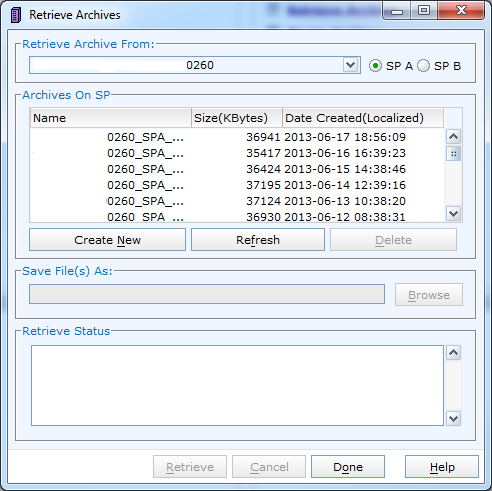
analyzer3

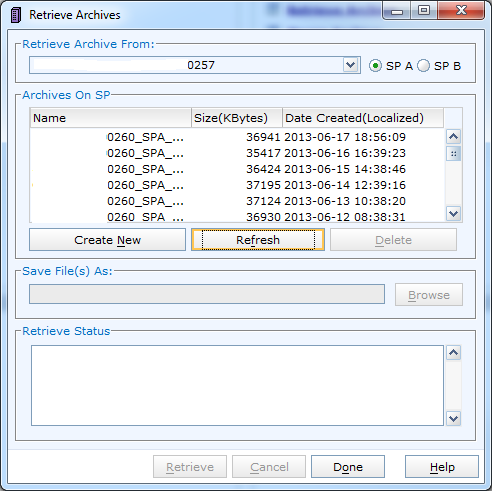
Ok, I’ve logged on to array 0260 and can now retrieve the files I want. But do I still get weird behaviour? Yes, yes I do.

analyzer4

If anyone has any ideas, I’m all ears. I think Mat is going to log a call at some stage.


EMC – DIY Heatmaps – Updated Version

Mat has updated the DIY Heatmaps for EMC CLARiiON and VNX arrays to version 4.01. You can get it from the Utilities page. Any and all feedback welcome.

Updates and Changes to the script

  • Add database storage / retrieval for performance stats. The database size will be approximately 2.1 x the size of the NAR file based on the default interval of 30 minutes. On my PC it took a bit over 9 hours to process 64 NAR files into a database, the NAR files were 1.95GB and the resulting database was 4.18GB. However running the script over the database to produce a heatmap only takes seconds.
  • Changed to use temporary tables for transitional data.  This should slightly reduce the size of the database file, as the temporary data is not written to disk.
  • Changed the way the script processes multiple NAR files, the script previously bunched all NAR files into a single naviseccli process, this was problematic if you were processing multiple large NAR files, the script now processes them one at a time.
  • Add command line options:

–output_db                               Output the processed NAR file to the nominated database

–input_db                                  Use the nominated database as the source of data for the heatmap

–s_date                                       Specify a start date/time must be in the format (with quotes if specifying date and time “mm/dd/yyyy hh:mm:ss”

–e_date                                       Specify an end date/time

–retrieve_all_nar                     When retrieving NAR files from the array, you can now retireve all nar files (it wont overwrite files already downloaded)

–process_only_new                 If you are downloading NAR files, only process files that haven’t been downloaded previously

–max_nar_files                        Set the maximum number of files to download and process


Please let us know if you find any bugs or problems with the script, or if you have any further suggestions for changes and enhancements.

Thanks

Mat.