VMware Cloud on AWS – What’s New – December 2025

I posted last month about what’s new in VMware Cloud on AWS, particularly as it related to stretched cluster and HCX enhancements. The team has been working hard on some more new features, and I thought I’d cover them off briefly here. More detail can be found in the VMware Cloud on AWS Release Notes are here, and there’s a great blog post from the team here.


What’s New?

New Host Usage Report API

Have you been wondering what’s going on with resources in your VMC on AWS environment? Wonder no more. All the cool cloud kids are using APIs, and VMC on AWS is no different. Now you can retrieve daily host usage reports for any date range and filter by region, instance type, SKU, and other attributes – all via the API. There’s no need to call me and ask for a report on what’s happening, nor do you need to log a ticket to get access to the information. Here’s what a sample query looks like.

curl -H 'Authorization: <value>' https://{api_host}/api/activityanalytic/{org_id}/hosts/{freq}/usage-report?start_date=value&end_date=v

Check out the documentation here.

Redesigned VMware Cloud on AWS UI

The VMware Cloud on AWS UI has also had a facelift, and the interface is more streamlined and easier to navigate. You can access it at https://vmc.broadcom.com.
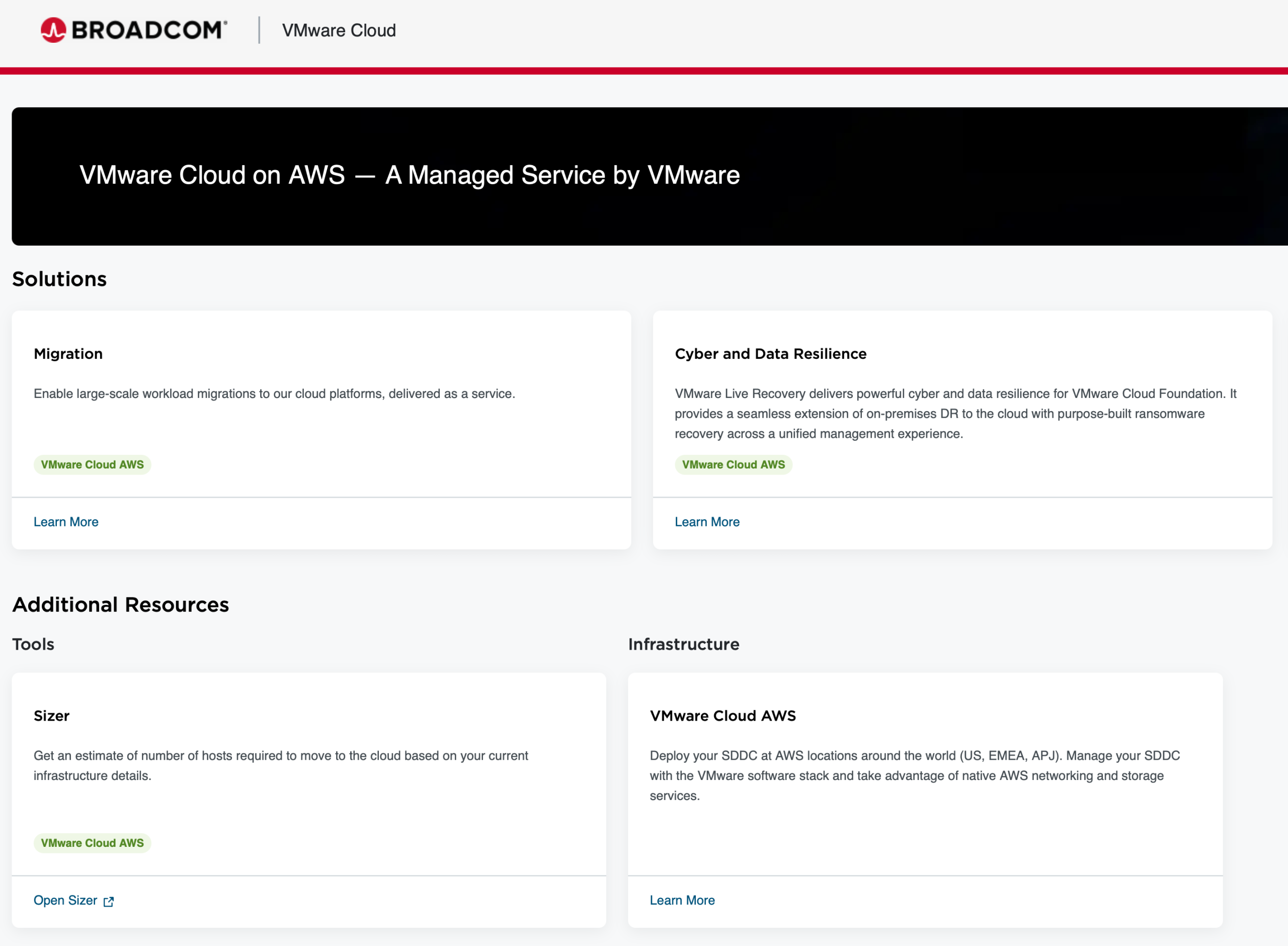
VMC Sizer & Cluster Conversion Updates

Ever since I started working with VMware Cloud on AWS, I’ve been a huge fan of the VMC Sizer tool. It’s so much better than trying to build solution estimates with a spreadsheet and a dream. If you’re an existing I3.metal customer, you’ve likely (hopefully) been planning a migration to I3en.metal or I4i.metal nodes. The conversion estimates can be a bit of a mystery, and have frequently required involving people like me and folks from the SRE team to provide these estimates. The product team has been working to make the process more streamlined, while giving customers improved visibility into why the numbers are the way they are. The output from sizing estimates now provides clear reasoning behind why a specific number of hosts is required, and this is based on 6 elements (compute, memory, storage utilisation (with both conservative and aggressive options), vSAN storage policies, and NSX Edges). It’s never been a simple matter of saying two I3.metal hosts equals one I4i.metal host, and now the sizer output reflects this more clearly.

The following constraints should be noted:

  • Final host counts and sizing will be validated during the actual cluster conversion. Sometimes you end up with more, sometimes you end up with fewer hosts.
  • Customers should re-run sizing evaluations after any significant configuration, resource, or other changes. Please don’t add another 30TiB workload to your cluster and expect the same result.
  • No RAID policy changes are made during conversion. This is especially notable if you’re using custom storage policies in your environment.
  • Subscription estimates provided as part of this workflow are for planning purposes only and do not represent guaranteed final requirements.
  • Actual subscription needs may be higher than estimated, requiring additional subscription purchase post-conversion. You’re given a small window to make good on this.
  • Refunds or subscription reductions will not be provided if estimates exceed actual needs.


Thoughts

As I mentioned in my previous post, VMware Cloud on AWS is not going anywhere, and the product and engineering teams continue to innovate and work hard to ensure that users get the best value from their investment in the VMware Cloud on AWS solution. The Host Usage Report is extremely useful, and for those customers concerned about cluster conversions, the improvements to the VMC Sizer should improve the confidence in the sizing process.
VMware Cloud on AWS – What’s New – November 2025

I posted a little while ago about what’s new in VMware Cloud on AWS, particularly as it related to stretched cluster enhancements. The team has been working hard on a few new features, and I thought I’d cover them off briefly here. More detail can be found in the VMware Cloud on AWS Release Notes are here.


What’s New?

Improved Stretched Cluster Scale Down Support

When working with stretched clusters in VMC previously, there was a rule that, once a stretched cluster grew to 6 hosts, they couldn’t be reduced back down below that number. As requirements change over time, and customers look at alternative solutions and deployment topologies, this has become something of a blocker in terms of flexible deployment options. To combat this challenge, customers can now scale down from 6 or more hosts to 4 hosts (2 hosts per Availability Zone) or 2 hosts (1 host per Availability Zone). Why would you need to do this? You might have had a stretched cluster with I3.metal nodes deployed in it and you’ve recently converted that cluster to I4i.metal nodes. You very likely won’t need as many I4i nodes as you did I3s, so this gives you the option to reduce the cluster to an appropriate size. There are, of course, some constraints:

  • Firstly, if you’re using a “Large” (as opposed to Regular or Medium) management appliance deployment in your primary cluster, you can’t scale down below 6 hosts (3 per site).
  • Secondly, if you’re using custom CPU counts, and that count is 8, you can only scale down to 4 hosts (2 per site).
  • Finally, if you’re trying to scale down your cluster and that would leave the cluster with insufficient resources for your management and workload VMs, you won’t be able to do it. That is, you can’t make away resource constraints.

Note that if you are scaling down to 4 or 2 hosts, the Elastic DRS (EDRS) policy will be changed to “Storage Scale Up Only”. This ensures that EDRS won’t scale in your cluster leaving you with availability issues.

Have a stretched cluster and want to remove hosts? You can use this documentation to get it done. I’ve also covered the process here.

HCX version 4.11.3 Now Available for VMware Cloud on AWS

It is recommended that customers upgrade to HCX 4.11.3 as soon as possible to avoid support issues. It’s important to note that the “WAN optimization feature is no longer available. Before upgrading, users must deselect and remove all existing WAN-OPT appliance services from all Service Meshes and compute profiles. The upgrade will not proceed until the WAN-OPT appliance is removed from all Service Meshes as well as all compute profiles deployed in a given HCX connector / cloud system”. You can find out what’s new in HCX in the Release Notes.


Thoughts

Stretched clusters have been a great solution for VMC customers, but have, at times, denied customers the ability to make use of flexible deployment models. The addition of non-stretched clusters in stretched cluster SDDCs in September, and the ability to scale down below the current threshold of 6 hosts, should help customers make the most of their stretched clusters while still enjoying the ability to work with a more flexible topology. I’m also a big fan of HCX, particularly supported versions of HCX. VMware Cloud on AWS is still around, and still doing a great job of hosting VMware-based workloads on AWS infrastructure. The team continues to make enhancements to the product, and I’m looking forward to talking about what’s coming next month as well. If you have any questions, feel free to reach out and I can help, or point you to someone who can.

VMware Cloud on AWS – What’s New – September 2025

It’s been a little while since I’ve posted about what’s new in VMware Cloud on AWS. There have been plenty of enhancements made to the platform, along with a streamlining of capabilities. The more things change, so to speak. That said, I thought I’d put up a short post that covers off some of the key enhancements made available to customers via the SDDC 1.24v5 update that’s currently being rolled out across the fleet. And if you’re trying to work out what on Earth I mean when I refer to 1.24v5, etc., here’s a handy document that’ll help you match up VMware Cloud on AWS releases and the corresponding vSphere components. The VMware Cloud on AWS Release Notes are here.


What’s New?

Non-Stretched Secondary Cluster Support in Multi-Availability Zone Stretched Cluster SDDCs

It’s a bit of a mouthful, but let me dig in. I’ve posted about the utility of stretched clusters previously (and I’m thinking of writing about it again based on some conversations in the past month). Stretched clusters have historically been a cool way to ensure that your workloads are protected across multiple Availability Zones in the event that one or more components (or hosts or even the whole Availability Zone) go away. One of the constraints with VMC on AWS stretched clusters, however, has been that an SDDC with a stretched cluster could only ever contain stretched clusters – there was no opportunity to mix topologies within the SDDC construct. So, one organisation I know of has its production workloads running on a stretched cluster on one SDDC, and its non-production workloads running on another SDDC. While it’s not the end of the world, it makes things slightly more fiddly from a management perspective, and duplicates some of the work required when it comes to firewall configurations, user creation, workloads mobility, and so forth. The VMC team has recognised this, and has now announced that VMC on AWS will have support for secondary non-stretched clusters in the same SDDC as stretched clusters.

There are, of course, a few caveats to be mindful of. Firstly, you need to be on 1.24v5. Secondly, the primary cluster needs to be a stretched cluster – you can’t add stretched clusters to non-stretched SDDCs. Thirdly, you can’t convert stretched to non-stretched and vice versa. Once the clusters are configured the way they are, you’ll need to keep them that way. Fourthly, the non-stretched clusters can only be deployed in one of the Availability Zones in which you’ve deployed your stretch cluster. You couldn’t, for example, deploy a stretched cluster in AZ1 and AZ2, and deploy a non-stretched cluster in AZ3, while hoping to keep this all in the same SDDC. Finally, the minimum non-stretched cluster size is three hosts, not two.

Default and Maximum Virtual Machine Hardware Version Increased

From the release notes, “[t]he default virtual hardware version has been increased from Virtual Hardware 14 (vSphere 6.7 compatibility) to Virtual Hardware 19 (vSphere 7.0 U2 compatibility). The maximum virtual hardware version has been increased from Virtual Hardware 19 (vSphere 7.0 U2 compatibility) to Virtual Hardware 20 (vSphere 8.0 compatibility)”. This really helps with compatibility with newer Windows and Linux guest operating systems while still providing the (crucial) ability to move workloads between VMware hosts on various cloud and on-premises platforms.

Increased NFS Throughput

Of note with the 1.24 release, “the MTU on VMK0 has been increased to 8500”. It’s reported that this increases large block throughput by up to 20% for NFS Datastore workloads. This is becoming increasingly important as customers look to leverage NFS-based storage solutions like FSx for NetApp ONTAP for less latency-sensitive storage workloads that don’t need to be hosted on vSAN.


Thoughts

While I’m excited about the General Availability of Amazon Elastic VMware Service, that doesn’t mean that VMware Cloud on AWS is dead. The VMware Cloud on AWS product and engineering teams have continued to work on releasing innovative features and important, incremental improvements. The encouraging thing about this is that they are listening to customers, particularly around things like mixed cluster topologies, and continuing to adapt the solution architecture to satisfy those requirements. This is a good thing for both existing and potential customers. If you looked at VMware Cloud on AWS three years ago and ruled it out, I think it’s worth looking at again.

EMC – Boot from SAN MSCS Cluster configuration

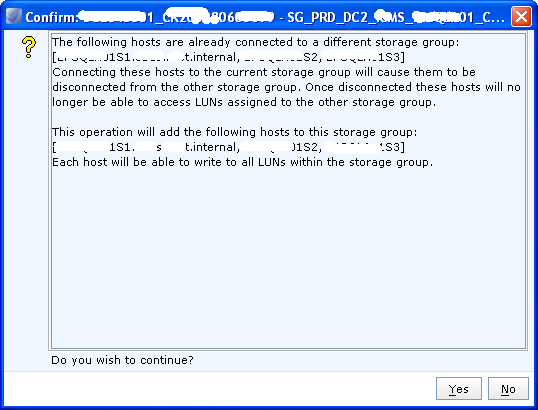
Disclaimer: I haven’t done a Windows-based CLARiiON host-attach activity in about 4 or 5 years. And it’s been a bit longer than that since I did boot from SAN configurations. So you can make of this what you will. We’ve been building a Windows 2008 R2 Boot from SAN cluster lately. We got to the point where we were ready to add the 60+ LUNs that the cluster would use. The initial configuration had 3 hosts in 3 storage groups with their respective boot LUNs. I had initially thought that I’d just create another Storage Group for the cluster’s volumes and add the 3 hosts to that. All the time I was trying to remember the rule about multiple hosts or multiple LUNs in a Storage Group. And of course I remembered incorrectly.

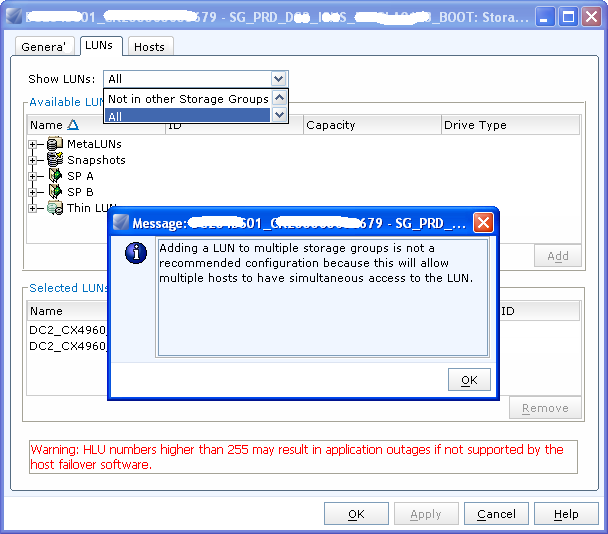
To get around this issue, I had to add each LUN (there are about 67 of them) to each Storage Group for the cluster nodes. And ensure that they had consistent host IDs across the Storage Groups. Which has worked fine, but isn’t, as Unisphere points out, recommended. There’s also an issue with the number of LUNs I can put in a Consistency Group (32) – but that’s a story for another time.

VMware ESX Cluster in a Box

This is very old news, but one of the neat things about ESX is that you can build clusters for testing and don’t have to shell out for a split-bus DAS or SAN space. My colleague, who’s been using ESX for good and evil (testing Veritas Cluster Server) needed to build one in our dev environment the other day. Last time I did this was to cluster VirtualCenter 2.0.2 and I was a bit rusty on the process.

So, for my reference, do this:

Create a shared vmdk to act as the quorum disk using vmkfstools (it needs to be in thick format)

vmkfstools -c 512m -a lsilogic -d thick /vmfs/volumes/datastore/quorum.vmdk

-c to create a vmdk and what size it should be
-a to specify the adapter type (lsilogic or buslogic)
-d can specify some neat things, like RDM settings, etc

Make another vmdk if you’d like to, well, share some data between the nodes.

Add the disk to the guest as an existing device and change the SCSI ID of the card to something like SCSI (1:0). This adds another SCSI adapter to the guest. Set the sharing mode on the adapter virtual or physical, depending on whether you want the cluster in the box or sharing with another physical / virtual host outside of the ESX host. If you don’t specify the -a option when you create the vmdk, it defaults to buslogic. Obviously if you want to share the disk with another physical host you can’t use a vmdk.

Do the same on the other guest / physical host / etc. Install MSCS or VCS or whatever passes as a clustering solution in your life. Enjoy. I also recommend the man page for vmkfstools – it’s an invaluable reference.